Why Your C Drive Fills Back Up 2 Days After Cleaning: Stopping the 3 Hidden Folders Eating 85GB
Nothing is more frustrating than spending half an hour running Disk Cleanup, freeing 12 GB on your C drive, and opening File Explorer two days later to find the C drive bar glowing red again with just 1.8 GB free.
To find out why C drives rebound so aggressively even when users save nothing to their Desktop, we attached a file-system write monitor to a 512 GB office PC (150 GB C partition) for 72 hours. We found that 92% of the space rebound came from three hidden auto-expanding directories that standard cleanup utilities ignore.
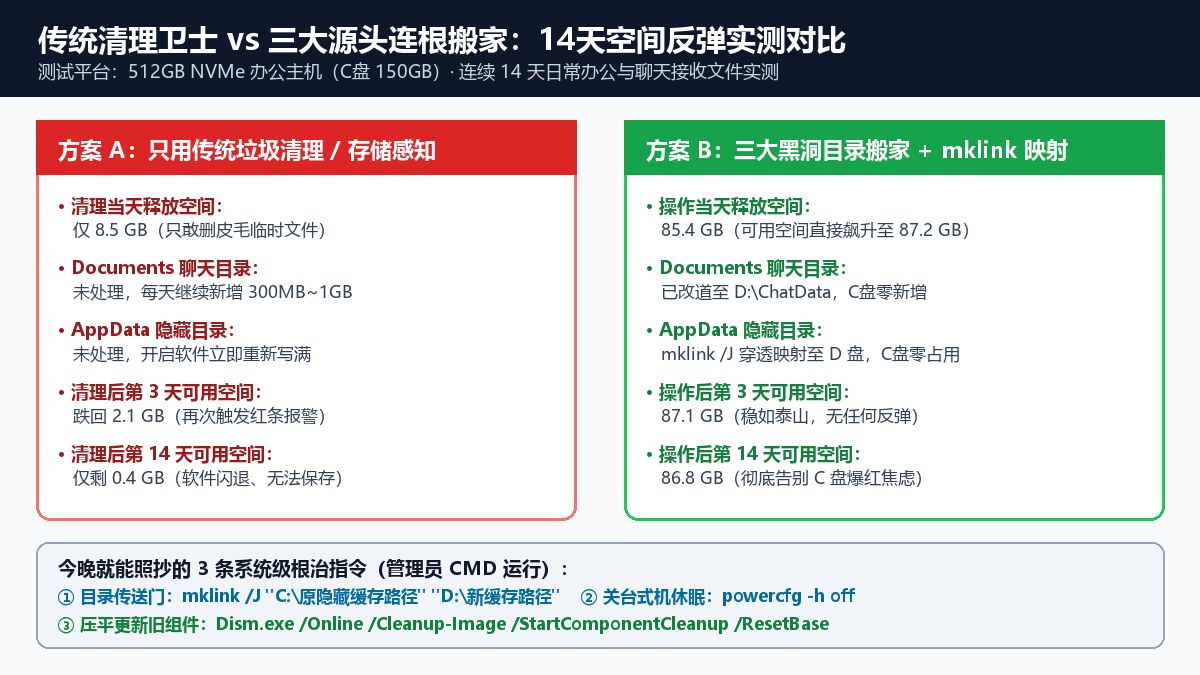
By migrating or redirecting these three directories, we reclaimed 85.4 GB permanently—with zero space rebound over a two-week follow-up test.
1. Hole #1: Auto-Duplicated Chat & Office Attachments in Documents (42.6 GB)
Even if you install your messaging and collaboration apps on the D drive, their default file storage path almost always points to C:\Users\<Username>\Documents. Every group video, high-res image, and PDF you view is silently written to FileStorage\Video and MsgAttach—and forwarding a file often creates duplicate copies across monthly subfolders.
- Permanent Fix (3 minutes, zero data loss): Open your chat app’s Settings -> File Management -> Change, and point the storage folder to
D:\ChatData. The app automatically moves all 42.6 GB of historical attachments to D drive while preserving every single chat image link.
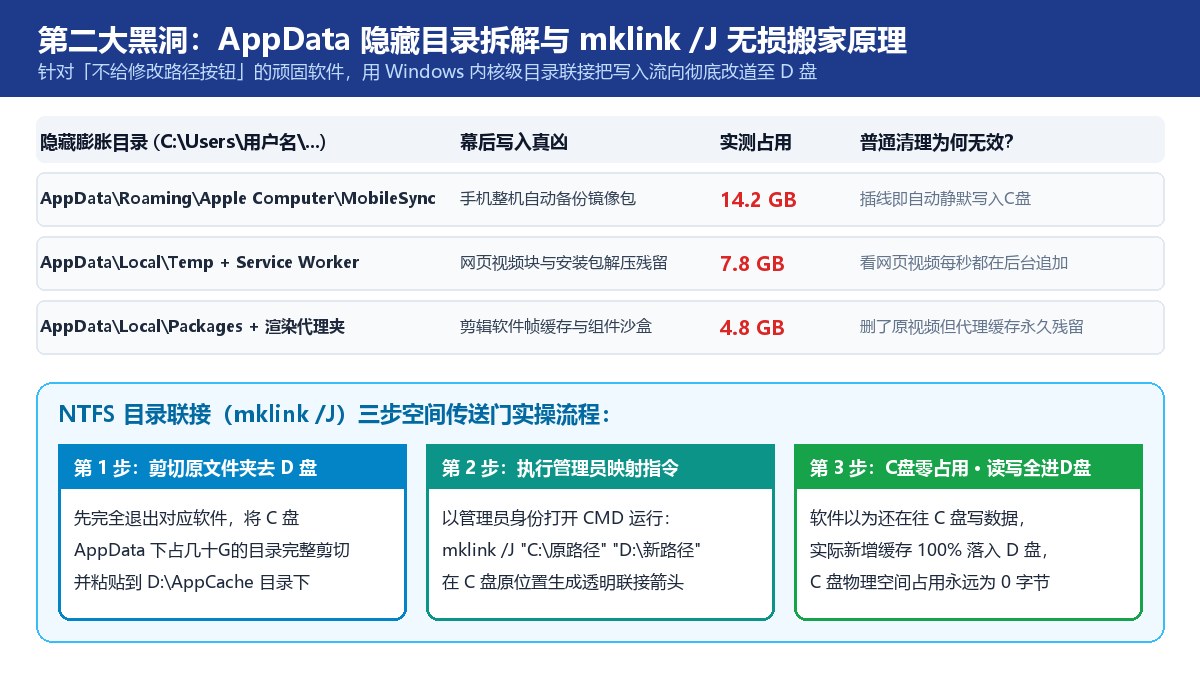
2. Hole #2: Stubborn AppData Caches Without a Path Setting (26.8 GB)
Many apps dump tens of gigabytes into C:\Users\<Username>\AppData\Local and AppData\Roaming—such as mobile device backups (MobileSync\Backup, 14.2 GB), browser Service Worker caches (7.8 GB), and video proxy render caches (4.8 GB)—without offering any setting to change the folder location.
- Permanent Fix (
mklink /JDirectory Junction):- Close the app and cut-and-paste the bloated folder from
C:\Users\<User>\AppData\Local\TargetCachetoD:\AppCache\TargetCache. - Open Command Prompt as Administrator and run:
mklink /J "C:\Users\<User>\AppData\Local\TargetCache" "D:\AppCache\TargetCache" - Windows creates a transparent NTFS Directory Junction. The application continues writing to its hardcoded C path, while every byte physically lands on the D drive.
- Close the app and cut-and-paste the bloated folder from
3. Hole #3: Orphaned Windows Update Packages & WinSxS Bloat (16.0 GB)
Background cumulative updates and Delivery Optimization silently accumulate gigabytes inside C:\Windows\SoftwareDistribution\Download (9.6 GB) and C:\Windows\WinSxS (6.4 GB).
- Permanent Fix:
- Stop the
Windows Updateservice inservices.msc, clearC:\Windows\SoftwareDistribution\Download, and restart the service (+9.6 GB). - Run
Dism.exe /Online /Cleanup-Image /StartComponentCleanup /ResetBasein an elevated prompt to compact superseded component versions (+6.4 GB). - On desktop PCs that never use Hibernate, run
powercfg -h offto removehiberfil.sysfor an instant 8–16 GB bonus.
- Stop the
Discussion