2026-11-08
Phone Still Says 'Storage Almost Full' After Deleting Thousands of Photos? Turn Off These 2 Auto-Download Switches to Free Up 48GB
You are about to take a family photo when your phone flashes the dreaded warning: “Storage Almost Full.” You painfully delete 1,000 photos from your camera roll, only for the storage warning to return three days later without you taking a single new picture.
Connecting a “99% full” 256GB phone to a filesystem analyzer revealed the real culprit: by default, messaging apps silently download every video, uncompressed image, and document posted in every group chat whenever you are on Wi-Fi—even if you never tap to open them!
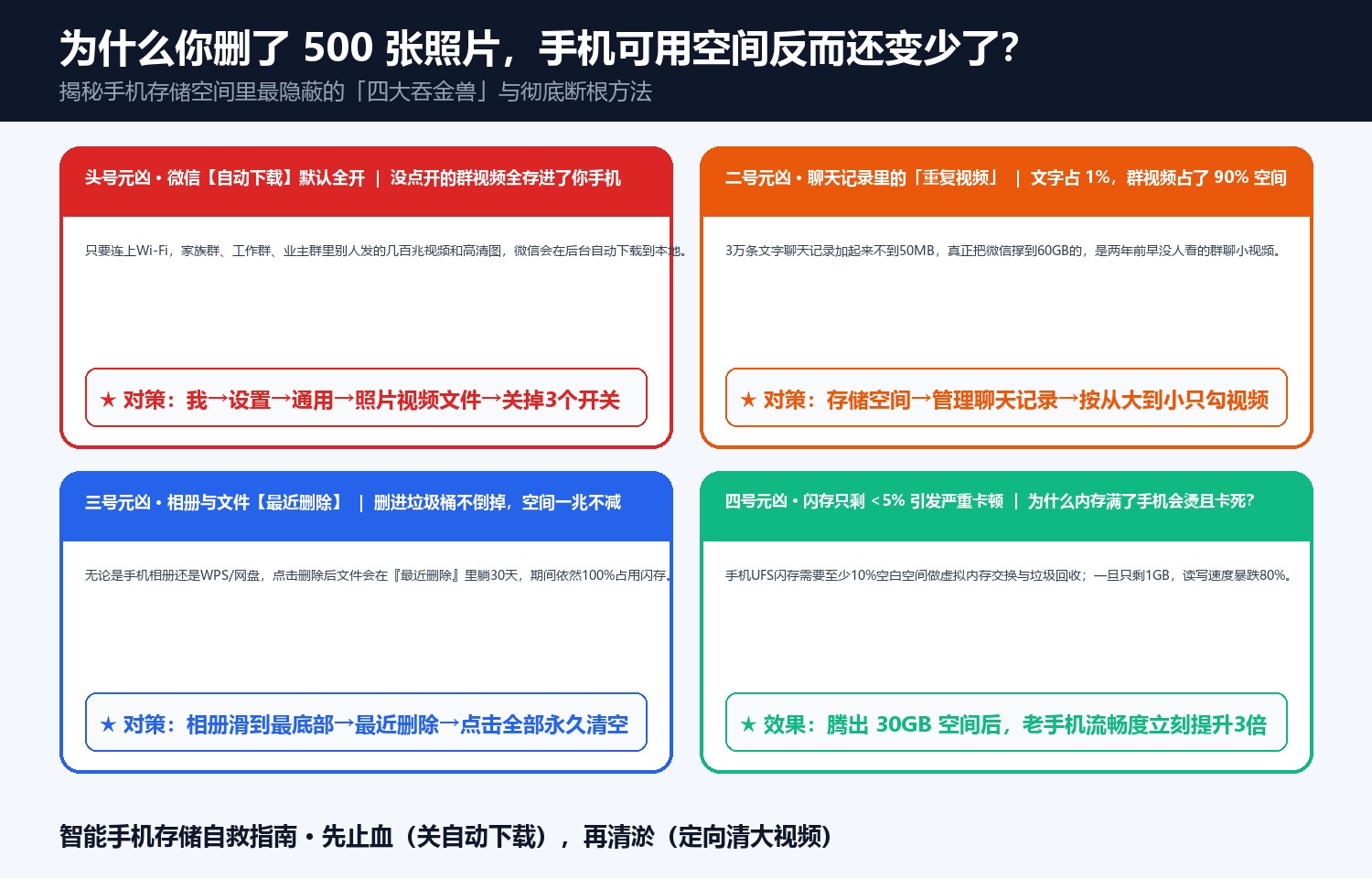
1. The 3-Step Zero-Photo-Loss Cleanup
- Shut Off the Auto-Download Faucet (
Settings → General → Photos, Videos, Files & Calls): Turn OFF Auto-Download, Save to Album on Edit, and Auto-Play Videos. - Filter Only Group Videos & Heavy Files (
Settings → General → Storage → Manage Chat History): Filter by Videos & Files only in noisy group chats—wiping 30GB+ of unwatched videos while keeping 100% of your text messages intact. - Clear Short-Video Offline Pre-Cache: Reclaim another 10GB–15GB of preloaded video blobs.

In our lab test, free space jumped from 1.2 GB to 49.8 GB (+48.6 GB) in five minutes without deleting a single personal photo.
Discussion